
Use the CLI
The CLI can run as a standalone tool or as a kubectl plugin. You can copy it from the netobserv-controller-manager pod to your local machine.
Use the CLI for on-demand troubleshooting when you want to inspect packets or flows for a limited period. It supports these two modes:
- TUI mode, which displays captured traffic in real time for interactive inspection
- Background mode, which starts a capture task and lets it continue until it reaches the configured stop condition or is stopped manually
Both modes support exporting capture results for offline analysis.
TOC
Copy the CLIInstall or Copy yqView the Help MessageCapture PacketsRun Packet Capture in TUI ModeRun Packet Capture in Background ModeCapture FlowsAdditional ResourcesCopy the CLI
Example:
Install or Copy yq
The CLI requires yq on your local machine to modify YAML files. If yq is not installed locally, you can copy the binary from the netobserv-controller-manager pod.
The CLI uses some images packaged in the NetObserv Operator, but it does not require the NetObserv Operator to be installed to work. After you prepare the CLI, you can uninstall the NetObserv Operator if you no longer need it. The CLI will continue to work.
View the Help Message
Before you start a capture task, review the available commands:
Capture Packets
Packet capture records raw packets that match the filters you specify. Use packet capture when you need full packet details instead of summarized flow records.
If a packet length is greater than 256 bytes, the packet will be truncated in the capture results.
The captured packets can be exported to a pcapng file for offline analysis with tools like Wireshark.
Example in Wireshark:
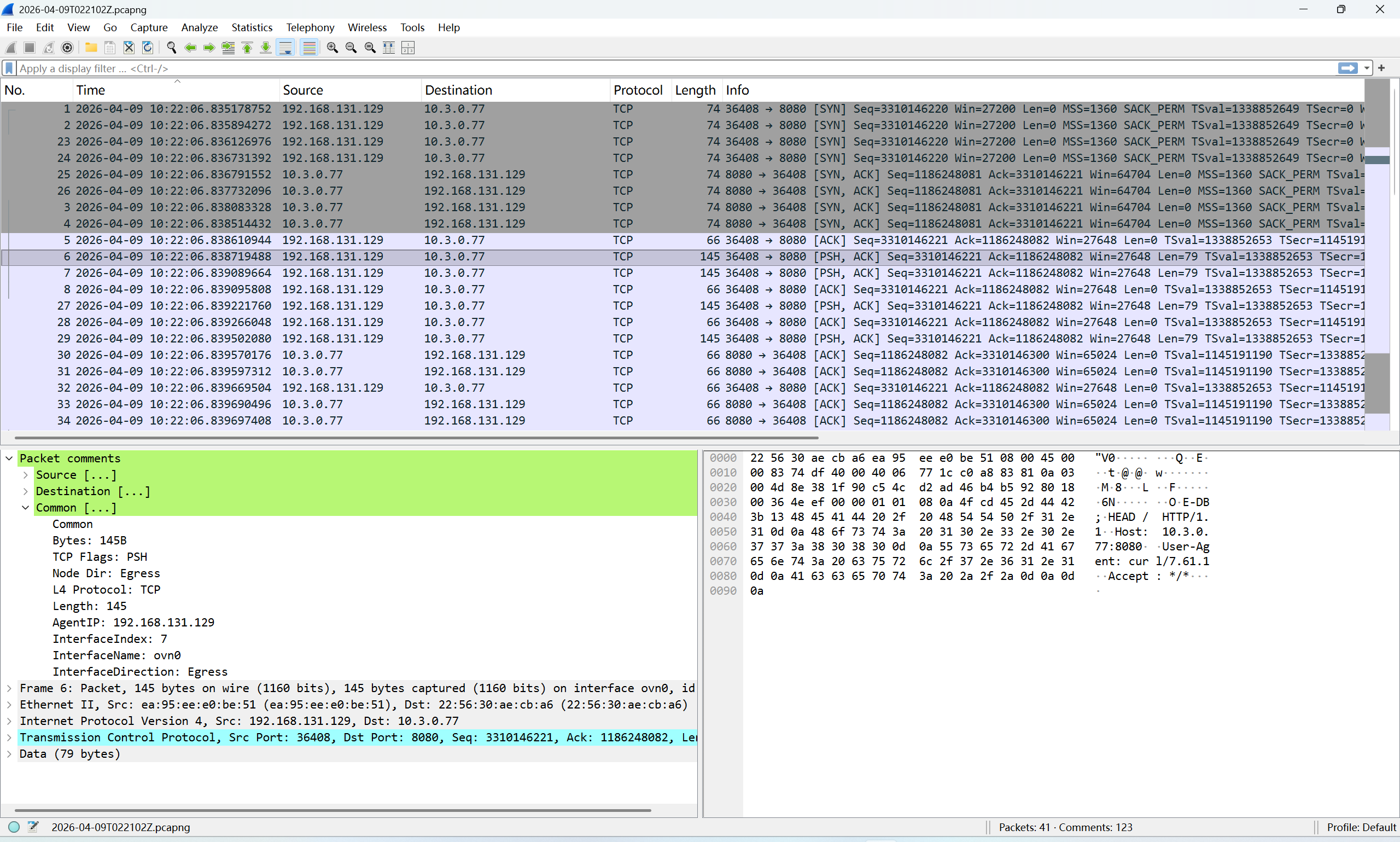
The captured packets are not sorted by timestamp in the pcapng file, so you may need to sort the packets by timestamp in Wireshark to analyze the packet flow.
The packet comments include metadata such as node IP, interface name, and Kubernetes resource information. Example packet comments:
You can filter packets in Wireshark based on these comments. Example filter by node IP and interface name:
In Kube-OVN overlay networking, packets between pods on different nodes are encapsulated with Geneve or VxLAN.
The original packet is carried as the payload of the Geneve or VxLAN packet.
To capture encapsulated traffic, use --enable_geneve or --enable_vxlan when running the packet capture command.
Example command for capturing TCP packets on port 8080, including Geneve-encapsulated packets:
Run Packet Capture in TUI Mode
Example command for TUI mode:
This command captures packets that match the specified filters and displays them in TUI mode.
Example TUI interface:
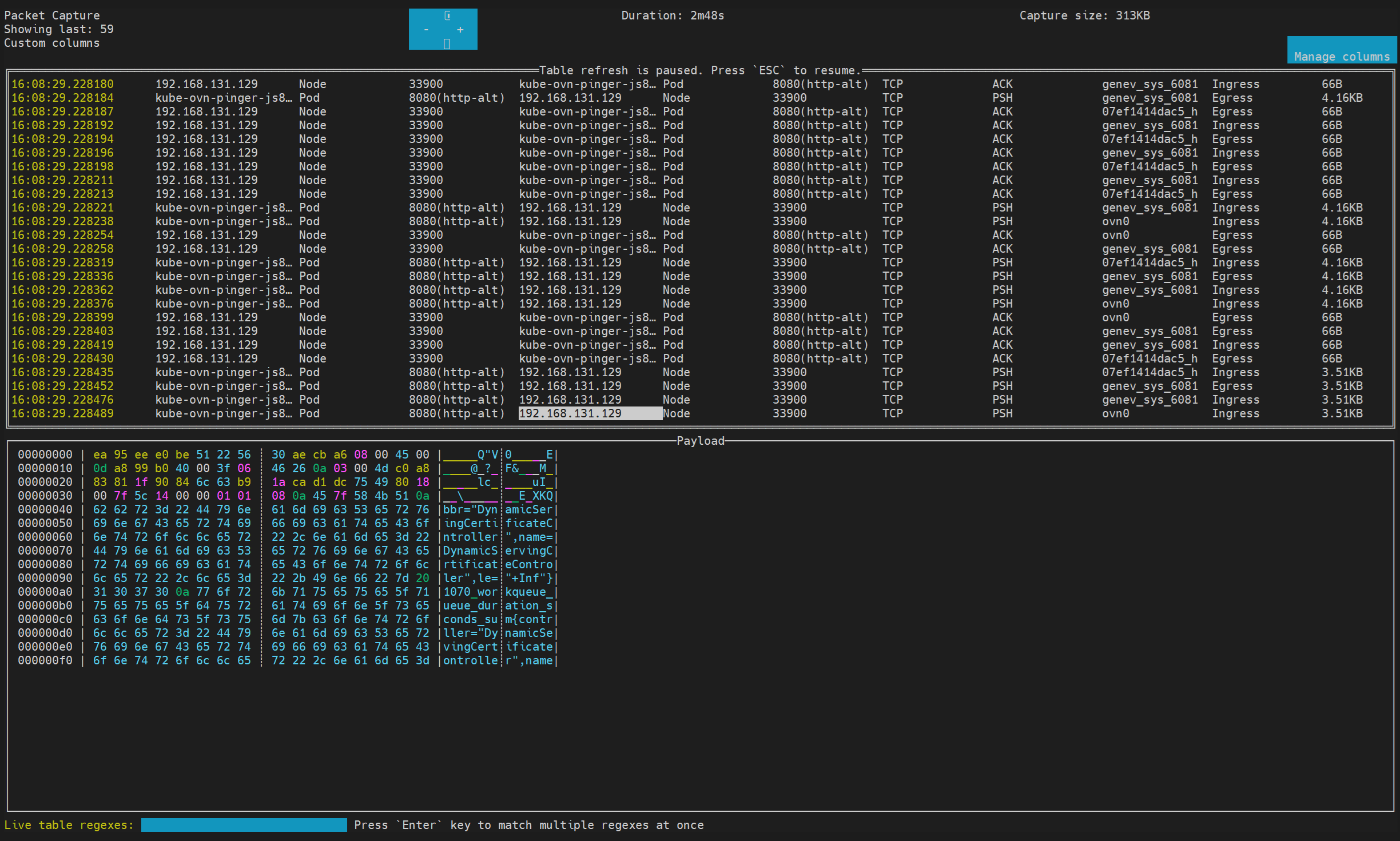
Press CTRL+C to exit TUI mode and stop the packet capture.
By default, the CLI will ask you whether to export the captured packets to a pcapng file after you exit TUI mode.
You can use the --copy flag to save the pcapng file automatically without confirmation.
Run Packet Capture in Background Mode
Example command for background mode:
This command starts a packet capture task in the background that captures packets matching the specified filters.
To copy captured packets to a pcapng file in background mode, run:
When the capture task is stopped or finished, you can use the cleanup command to remove the background capture task and free up resources.
Capture Flows
Flow capture records summarized network flow data instead of raw packets. Use it when you want traffic metadata and flow statistics rather than full packet payloads.
The usage of flow capture is similar to packet capture, but the results are exported in JSON and SQLite format instead of pcapng.
Example command:
Example TUI interface:
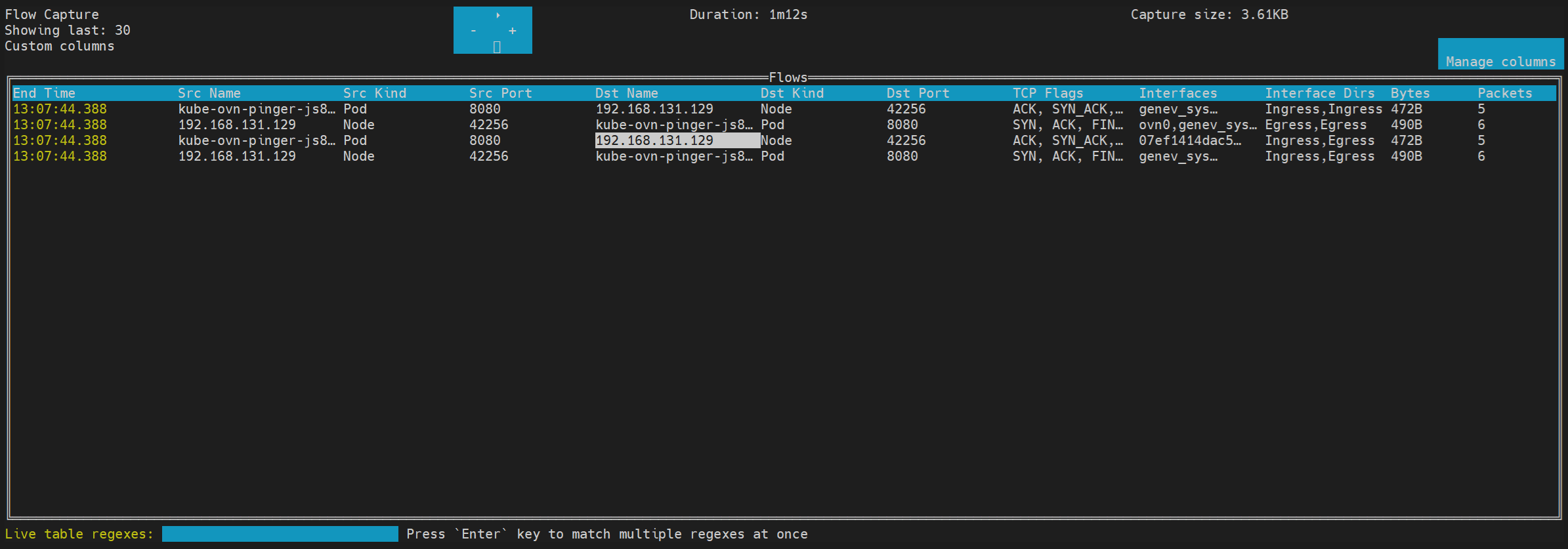
Example exported flow record in formatted JSON:
Example exported flow records in SQLite: